Thursday, 17 November 2022

Kubernetes Cluster Monitoring with Grafana and Prometeus

 Monitoring your Kubernetes cluster is critical for ensuring that your services are always available and running. And before you scour the internet for a monitoring system, why not try Grafana and Prometheus Kubernetes cluster monitoring?

In this guide, you’ll learn how to monitor your Kubernetes cluster, viewing internal state metrics with a Prometheus and Grafana dashboard.

Read on so you can keep a close watch on your resources!

Prerequisites

  • A Linux machine with Docker installed — This tutorial uses an Ubuntu 20.04 LTS machine with Docker version 20.10.7. Here’s how to install Ubuntu.
  • A single node Kubernetes Cluster.
AD
  • Helm Package Manager installed — For deploying the Prometheus operator.

Deploying the Kube-Prometheus Stack Helm Chart

Grafana and Prometheus Kubernetes Cluster monitoring provides information on potential performance bottlenecks, cluster health, performance metrics. At the same time, visualize network usage, resource usage patterns of pods, and a high-level overview of what is going on in your cluster.

But before setting up a monitoring system with Grafana and Prometheus, you’ll first deploy the kube-prometheus stack Helm chart. The stack contains Prometheus, Grafana, Alertmanager, Prometheus operator, and other monitoring resources.

1. SSH into your Ubuntu 20.04 machine (if you are running on a cloud server) or simply log into your locally installed Ubuntu 20.04 machine to begin.

2. Next, run the kubectl create command below to create a namespace named monitoring for all the Prometheus and Grafana related deployments.

kubectl create namespace monitoring
Creating a Namespace

3. Run the following helm repo commands to add the (prometheus-community) Helm repo, and update your Helm repo.

# Add prometheus-community repo
helm repo add prometheus-community https://prometheus-community.github.io/helm-charts

# Update helm repo
helm repo update
AD

4. After adding the Helm repo, run the helm install command below to deploy the kube-prometheus stack Helm chart. Replace prometheus with your desired release name.

This Helm chart sets up a full Prometheus kubernetes monitoring stack by acting based on a set of Custom Resource Definitions (CRDs).

helm install prometheus prometheus-community/kube-prometheus-stack --namespace monitoring

Once the deployment completes, you’ll get the following output.
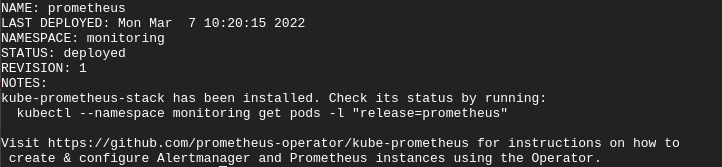
Deploying the kube-prometheus Stack

5. Finally, run the following command to confirm your kube-prometheus stack deployment.

kubectl get pods -n monitoring

The output below shows the deployment of the kube-prometheus stack. As you can see, each component in the stack is running in your cluster.

Listing Deployed Components from kube-prometheus Stack in monitoring Namespace

Accessing the Prometheus Instance

You’ve successfully deployed your Prometheus instance onto your cluster, and you’re almost ready to monitor your Kubernetes cluster. But how do you access your Prometheus instance? You’ll forward a local port 9090 to your cluster via your Prometheus service with the kubectl port-forward command.

1. Run the kubectl get command below to view all services in the monitoring namespace to check for your Prometheus service.

AD
kubectl get svc -n monitoring

All the services deployed in the monitoring namespace are shown below, including the Prometheus service. You’ll use the Prometheus service to set up port-forwarding so your Prometheus instance can be accessible outside of your cluster.

Listing Deployed Services in the monitoring Namespace

2. Next, run the below kubectl port-forward command to forward the local port 9090 to your cluster via the Prometheus service (svc/prometheus-kube-prometheus-prometheus).

kubectl port-forward svc/prometheus-kube-prometheus-prometheus -n monitoring 9090

But if you’re running a single-node Kubernetes cluster on a cloud server, run the following command instead.

kuebctl port-forward --address 0.0.0.0 svc/prometheus-kube-prometheus-prometheus -n monitoring 9090 

To run the kubectl port-forward command as a background process, freeing up your terminal for further use, append the & symbol at the end of the command. Follow up by pressing Ctrl+C keys to stop the port-forward foreground process (Doing so will not affect the port-forward background process).

3. Open your favorite web browser, and navigate to either of the URLs below to access your Prometheus instance.

  • Navigate to your server’s IP address followed by port 9090 (i.e., http://YOUR_SERVER_IP:9090) if you’re using a cloud server.

For this tutorial, Prometheus is running on a cloud server.

AD

If your Prometheus service works, you’ll get the following page on your web browser.
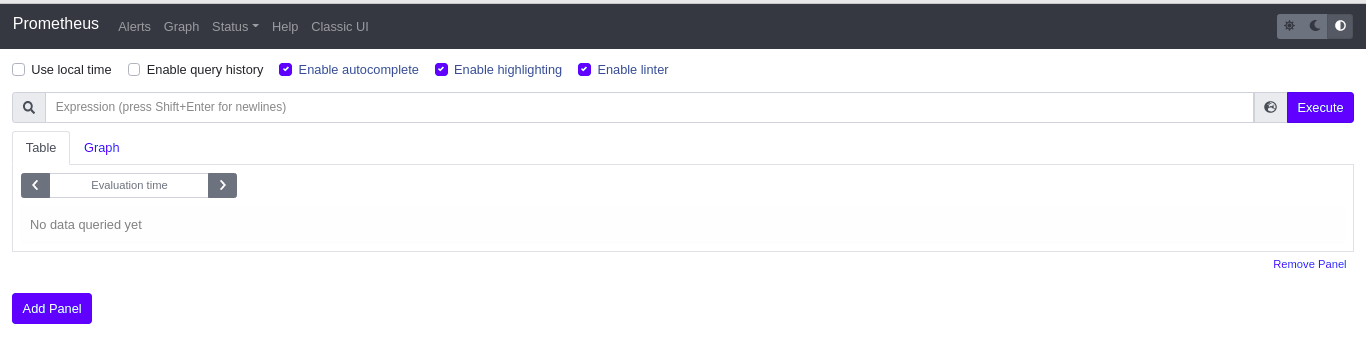
Accessing Prometheus

4. Lastly, on your terminal, press the Ctrl+C keys to close the port-forwarding process. Doing so makes Prometheus inaccessible on your browser.

Viewing Prometheus Kubernetes Cluster Internal State Metrics

Viewing your Kubernetes cluster’s internal state metrics is made possible with the Kube-state-metrics (KSM) tool. With the KSM tool you can keep track of the health and usage of your resources, and also internal state objects. Some of the data points that can be potentially viewed via KSM are; node metrics, deployment metrics, and pod metrics.

The KSM tool comes pre-packaged in the kube-prometheus stack and is deployed automatically with the rest of the monitoring components.

You’ll port-forward a local port to your cluster via the kube-state-metrics service. Doing so lets KSM scrape the internal system metrics of your cluster and output a list of queries and values. But before port-forwarding, verify your KSM Kubernetes service first.

1. Run the below command to check for your kube-state-metrics Kubernetes service.

kubectl get svc -n monitoring | grep kube-state-metrics

Below, you can see the KSM Kubernetes service name (prometheus-kube-state-metrics) along with the ClusterIP. Note down the KSM Kubernetes service name as you’ll need it to perform the port forwarding in the next step.

Verifying the KSM Kubernetes Service

2. Next, run the below command to port-forward the prometheus-kube-state-metrics service to port 8080.

kubectl port-forward svc/prometheus-kube-state-metrics -n monitoring 8080 

If you are following along with this tutorial with an Ubuntu 20.04 machine hosted by a cloud provider, add the (–address 0.0.0.0) flag to the kubectl port-forward command. Doing so allows external access to the local port via your server’s public IP address.

3. Finally, on your web browser, navigate to either of the URLs below to view the Kube Metrics page, as shown below.

  • Navigate to http://localhost:8080 if you’re on a local Ubuntu machine
  • Navigate to your server’s IP address followed by port 8080 (i.e., http://YOUR_SERVER_IP:8080) if you’re using a cloud server.

Click on the metrics link to access your cluster’s internal state metrics.
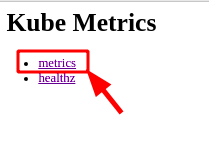
Accessing Kube Metrics

You can see below a cluster’s internal state metrics similar to yours.
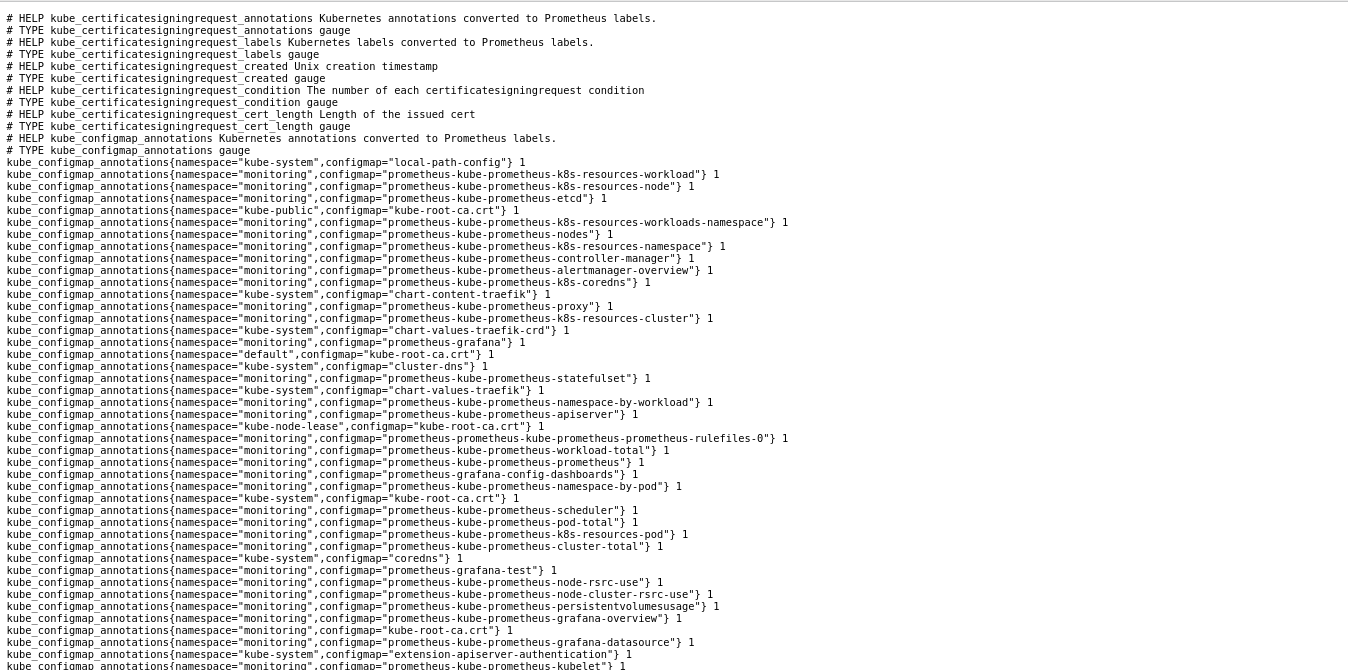
Listing Cluster Internal State Metrics
AD

Visualizing a Cluster’s Internal State Metric on Prometheus

You’ve successfully performed kube-prometheus stack Helm chart deployment, kube-state-metrics scrape, and Prometheus job configurations. As a result, CoreDNS, kube-api server, Prometheus operator, and other Kubernetes components have been automatically set up as targets on Prometheus.

1. Navigate to either of the http://localhost:9090/targets or http://<YOUR_SERVER_IP:9090/targets endpoints on your web browser. Doing so lets you verify that these targets have been properly configured.

Accessing the endpoint also lets you verify Prometheus is scraping their metrics and storing the data in a Time-Series Database (TSDB),

Remember to port-forward Prometheus as shown in the “Accessing the Prometheus Instance” section in step two, before navigating to the endpoint. You can as well run it as a background process.

As you can see below, different Kubernetes internal components and monitoring components are configured as targets on Prometheus.
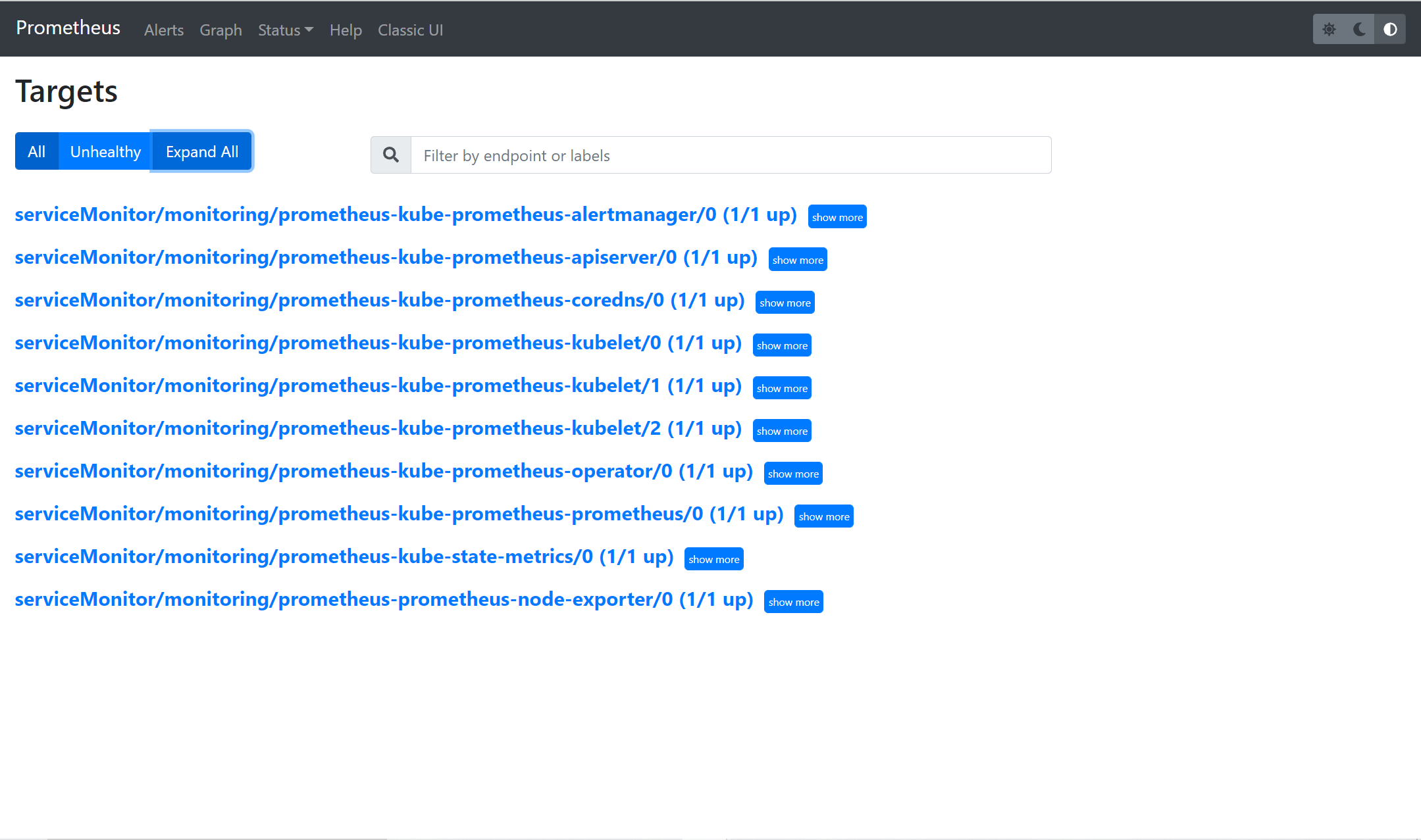
Viewing Pre-configured Monitoring Components as Prometheus Targets

2. Click on the Graph menu to get to a page where you’ll run a PromQL (Prometheus Query Language) query.

Accessing the Graph Page
AD

3. Insert the sample PromQL (Prometheus Query Language) query below into the expression space provided, then click on Execute. The query returns the total amount of unused memory in your Cluster.

sum((container_memory_usage_bytes{container!="POD",container!=""} - on (namespace,pod,container) avg by (namespace,pod,container)(kube_pod_container_resource_requests{resource="memory"})) * -1 >0 ) / (1024*1024*1024)
Executing a PromQL Query

4. To view the results of the PromQL query executed in step 3 in a graphical format, click on Graph. This graph will display the total amount of unused memory in your cluster per given time.

With everything set up correctly, the sample cluster metric should look similar to the graph below.
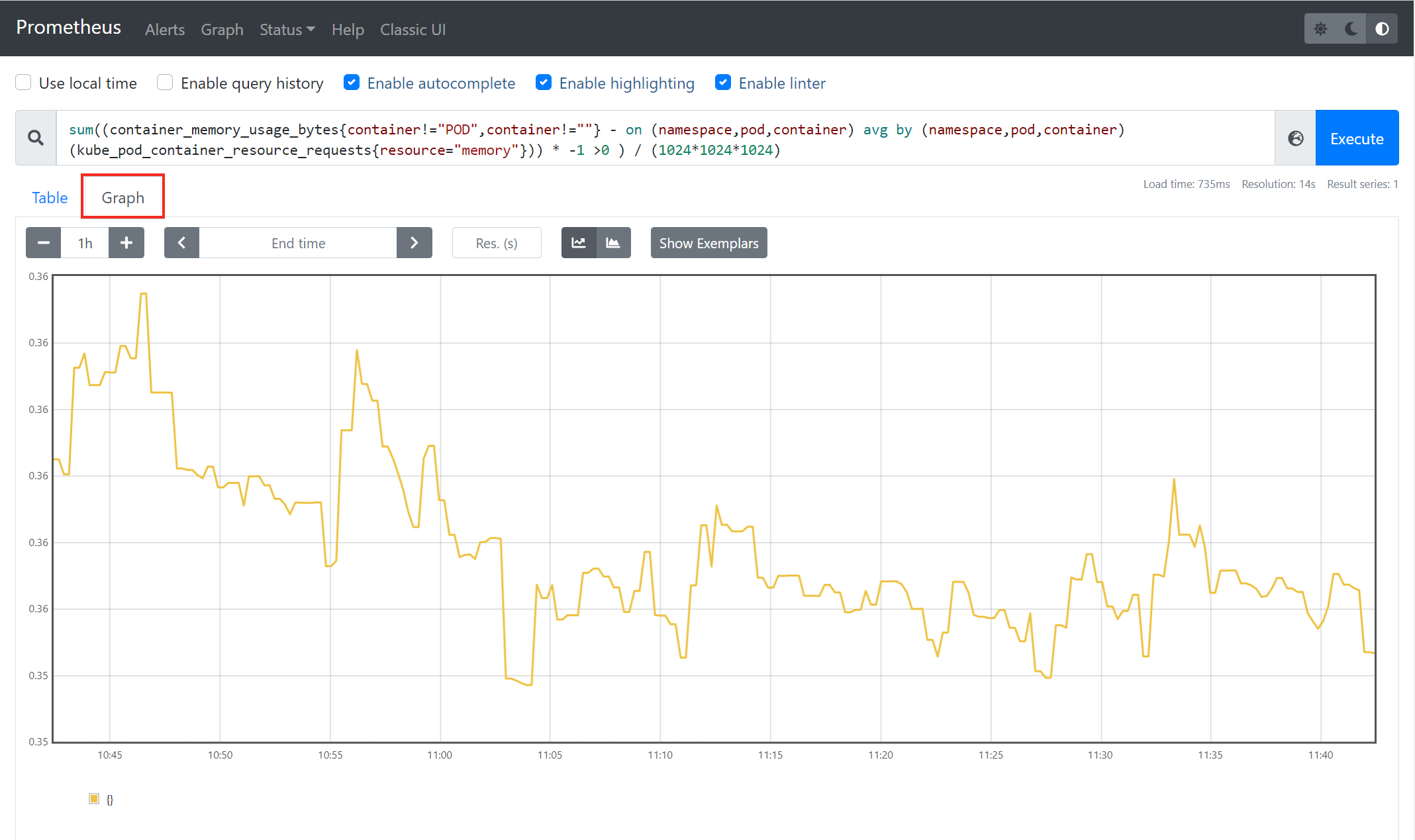
Graphical view of PromQL query of cluster metric

Accessing then Grafana Dashboard

You may have noticed that the visualization capabilities of Prometheus are limited, as you are stuck with only a Graph option. Prometheus is great for scraping metrics from targets configured as jobs, aggregating those metrics, and storing them in a TSDB locally in the Ubuntu machine. But when it comes to standard resource monitoring, Prometheus and Grafana are a great duo.

AD

Prometheus aggregates the metrics exported by the server components such as node exporter, CoreDNS, etc. While Grafana, with visualization being its strong suit, receives these metrics from Prometheus and displays them through numerous visualization options.

During the kube-prometheus stack helm deployment, Grafana had been automatically installed and configured, so you can configure access to Grafana on your Cluster.

To access your Grafana dashboard, you will first need to fetch your username and password stored as secretes automatically created by default in your Kubernetes cluster.

1. Run the following kubectl command to view data stored as secret in your Kubernetes cluster (prometheus-grafana) in YAML format (-o yaml).

kubectl get secret -n monitoring prometheus-grafana -o yaml

As you see below, the username and password for accessing your Grafana dashboard are encoded in base64. Note down the values of the admin-password and admin-user secrets as you’ll need to decode them in the next step.
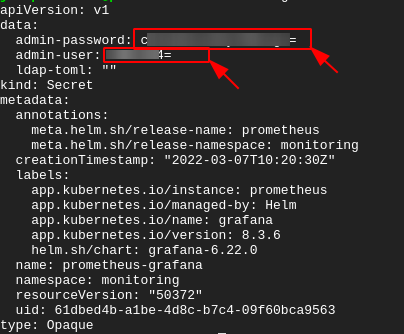
Viewing Secrets (admin-password and admin-user)

2. Next, run each command below to --decode both secrets (admin-password and admin-user). Replace YOUR_USERNAME, and YOUR_PASSWORD with the admin-password and admin-user secret values you noted in step one.

This tutorial doesn’t have an output for each command due to security reasons.

# Decode and print the username
echo YOUR_USERNAME | base64 --decode
# Decode and print the password
echo YOUR_PASSWORD | base64 --decode

3. Run the kubectl command below to port-forward to a local port at 3000 by binding the Grafana port 80 to port 3000. Doing so provides you access to Grafana’s web UI on your browser.

kubectl port-forward svc/prometheus-grafana -n monitoring 3000:80

Add the –address 0.0.0.0 flag if you are following along using an Ubuntu 20.04 machine hosted by a cloud provider.

4. Finally, on your browser, navigate to any of the endpoints below depending on your machine setup:

  • http://localhost:3000 (local)
  • or http://<YOUR_SERVER_IP>:3000 (cloud)

Enter your decoded secret value for admin-user and admin-password in the username and password in the space provided.
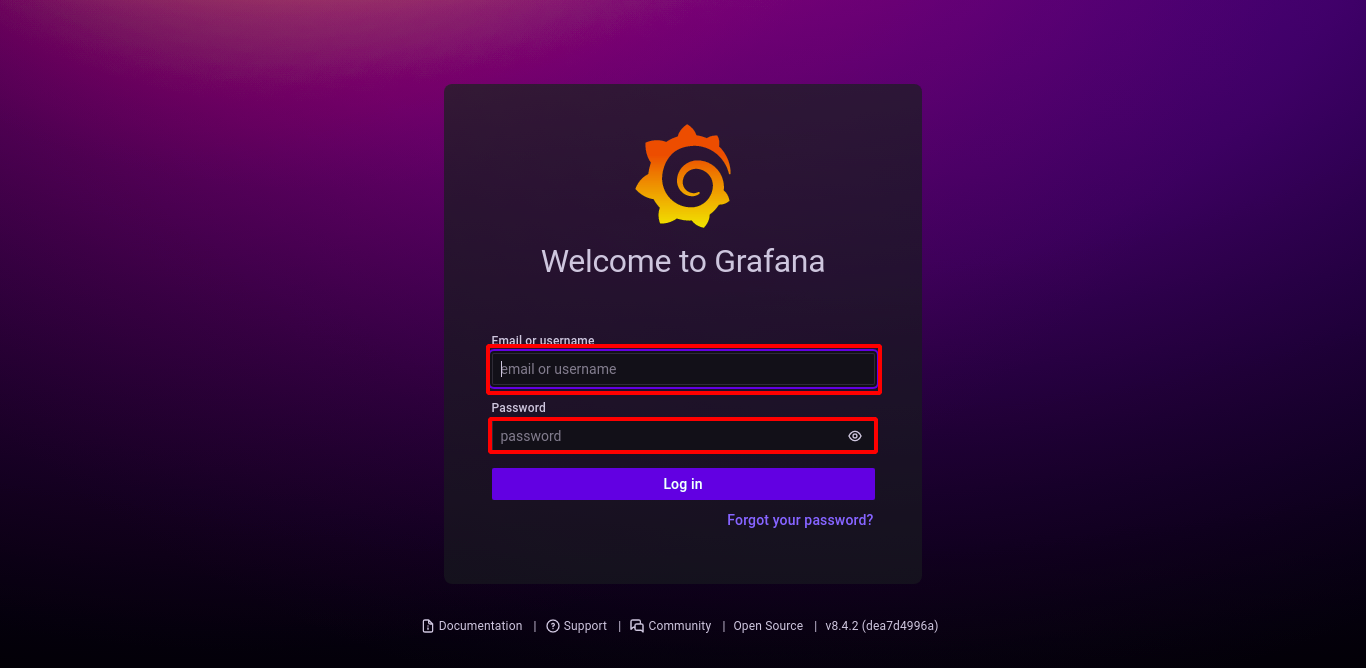
Entering Grafana Username and Password

Once you are logged in, you’ll get the Grafana dashboard, as shown below.
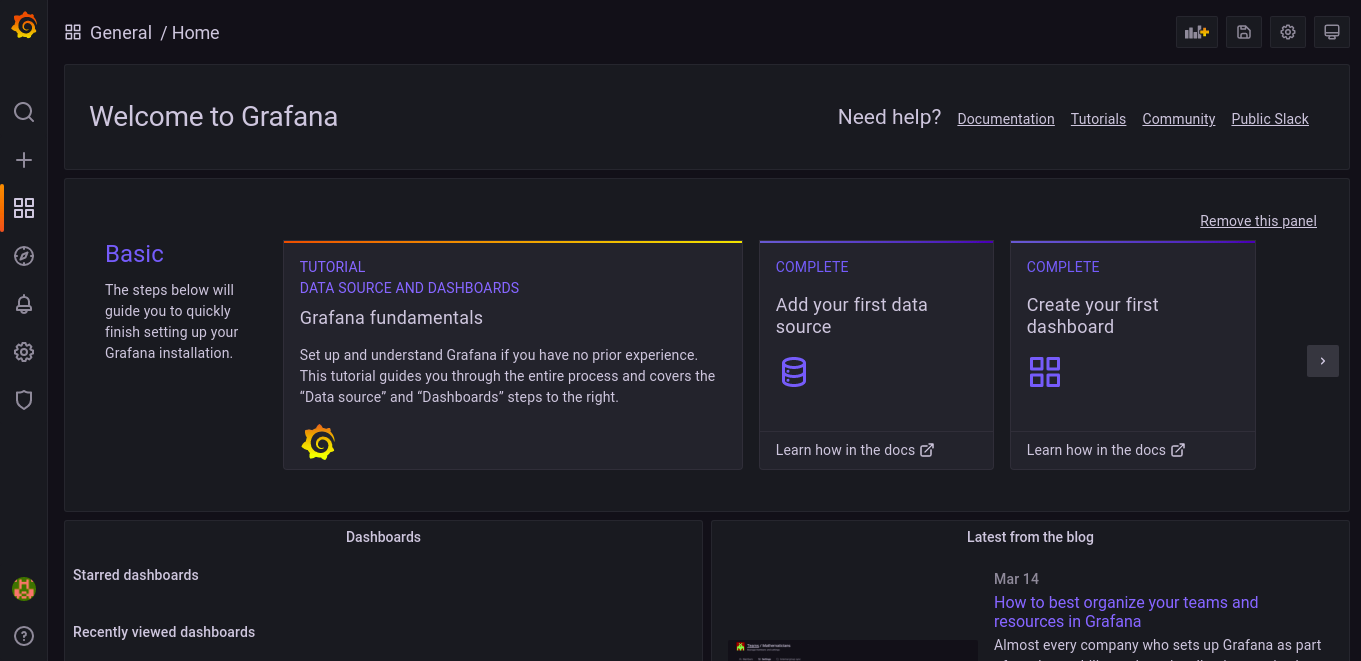
Accessing Grafana Dashboard

Interacting with Grafana

By default, the Kube-Prometheus stack deploys Grafana with some pre-configured dashboards for each target configured in Prometheus. With these pre-configured dashboards, you will not need to manually set up a dashboard to visualize each metric aggregated by Prometheus.

Click on the dashboard icon —> Browse and your browser redirects to a page where you’ll see a list of dashboards (step two).
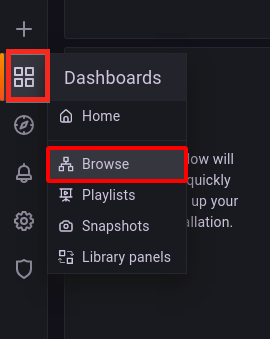
Accessing the list of Pre-configured Dashboards

Click on any of the pre-configured dashboards below to view its visual compute resource. But for this tutorial, click on the Kubernetes / Compute Resources / Namespace (Pods) dashboard.
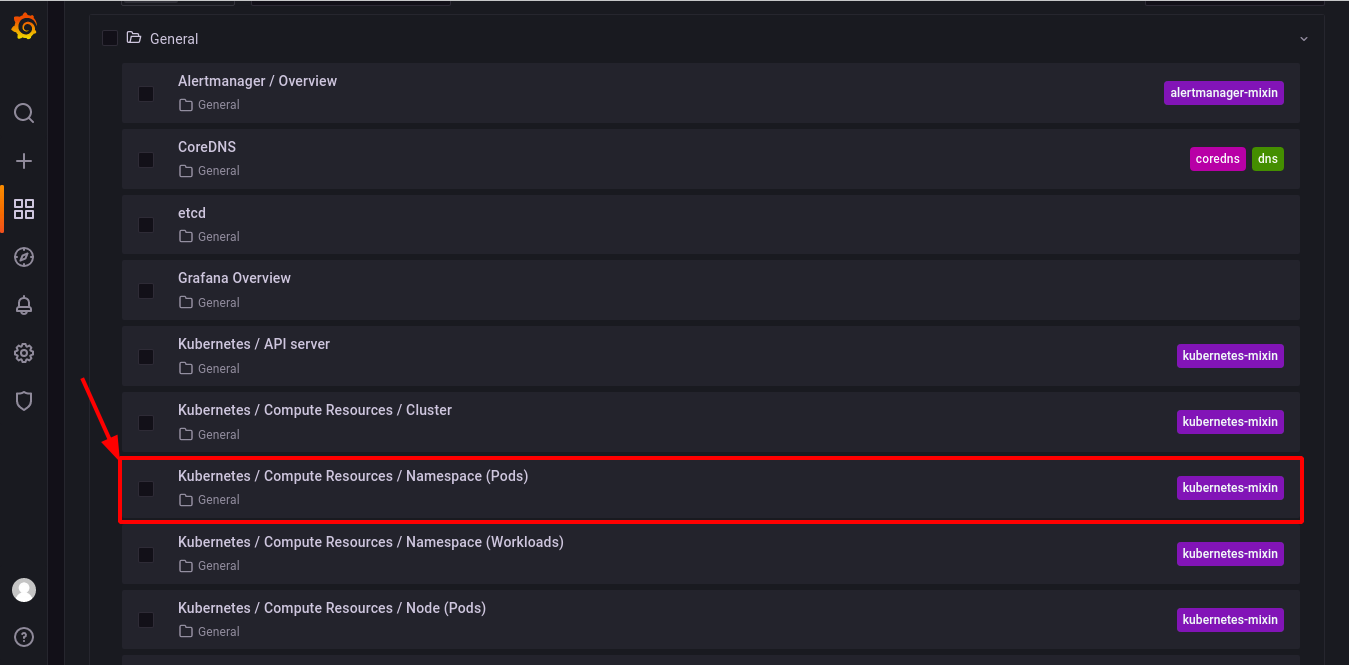
Viewing a Pre-configured Dashboard

Below is a sample pre-configured dashboard for visualizing compute resource usage by Pods in any of the available namespaces.

For this tutorial, the Data source has been set to Prometheus and the namespace for visualization is set to monitoring.
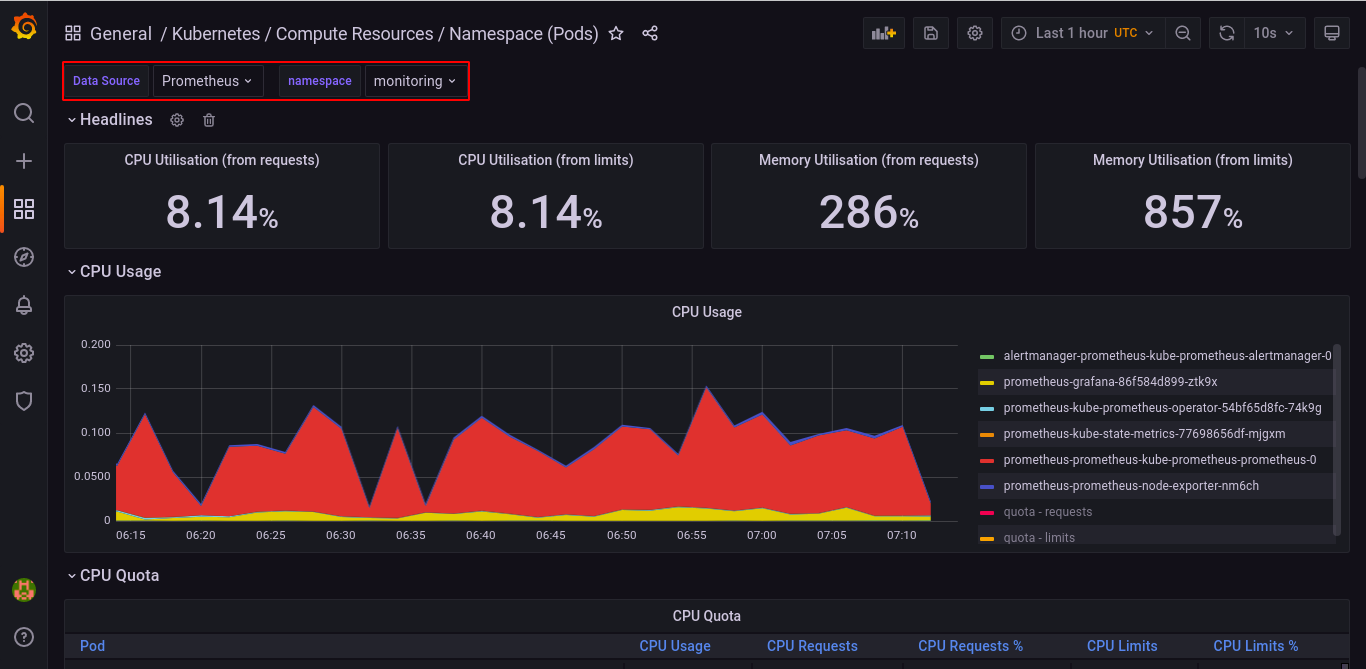
Visualizing Compute Resource Usage

Conclusion

In this tutorial, you’ve learned how to deploy the Prometheus operator using Helm and viewed your Cluster internal state metrics to monitor your Kubernetes cluster. You’ve also configured Grafana and viewed your Cluster metrics by configuring your Grafana dashboard.

At this point, you already have fully functional Kubernetes cluster monitoring. 

Tuesday, 15 November 2022

Project - August 2022 - Deli App - Theme Security

    Deli Foods is an Emerging Restaurant business with presence all over the United States designs.

They currently have a legacy web Application Written in Java and hosted by their private server : https://project-deliapp.s3.us-east-2.amazonaws.com/DeliApp/src/main/webapp/index.html

It usually takes 5hrs to update their application and updates are manual, which incurs alot of downtime and is affecting their business because clients get locked out which gives their competitors upper hand.


Your Task is to migrate this Application into the cloud and implement Devops Practices to their entire Software Development Life Cycle

You should show concepts that implement Plan --Code--Build--Test--Deploy--Monitor


TASK A - Documentation: Setup a Wiki Server for your Project (Containerization)

a.

You can get the docker-compose file from below link

https://github.com/bitnami/bitnami-docker-dokuwiki/blob/master/docker-compose.yml 

Or

Use the below command on your Terminal to get the Yaml code and create a Docker Compose File

curl -sSL https://raw.githubusercontent.com/bitnami/bitnami-docker-dokuwiki/master/docker-compose.yml

b. mount your own Data Volume on this container

Hint: by modifying the Docker Compose file eg.


c. Change default port of Wiki Server to be running on Port 84

d. Change the default User and password

 to 

         Username: DeliApp

         Password:  admin

hint: Use the official image documentation to find details to accomplish all this

https://github.com/bitnami/bitnami-docker-dokuwiki

TASK A  Acceptance Criteria: 

i. The Wiki Server should be up and running and serving on 84

ii. Mount your own container volume to persist data

iii. Login with Credentials DeliApp/admin


TASK B: Version Control The DeliApp Project

Plan & Code

App Name: DeliApp

  • WorkStation A- Team PathFinders- 3.15.209.165
  • WorkStation B - Team Goal Diggers- 3.143.221.53
  • WorkStation C- Team Fantastic 4- 3.144.208.46
  • WorkStation D- Team PracticeToPerfect- 3.131.152.227
Developer Workstations are windows machines, Your Project Supervisor will provide you their ip/dns and credentials you will use to log into the machine assigned to ur group: You can use Mobaxterm or RemoteDesktop to connect. The Username is Administrator

When you access the Developer workstation assigned to your group, you will find the code base in the below location:
This PC:---->Desktop---->DeliApp


(You can use Github or Bitbucket )- 

1) Set up 2 repos, a Build Repo to store all the code base and a Deployment Repo to store all your deployment scripts and name them accordingly as you see below(in green): 

  • Build repo : DeliApp_Build  --->Developers Access
  • Deployment repo: DeliApp_Deployment   --->-Your Team Access

2)Version control the DeliApp project located in the Developers WorkStation to enable the Developers migrate their code to the Source Control Management Tool(Bitbucket/Git)

  • Set up Developers workstations ssh-keys in bitbucket to access Build Repo and Your Team(Devops) workstation ssh-keys in bitbucket to access the Deployment Repo

3)Git branching Strategy for DeliApp_Build

  • master
  • release: eg    release/release-v1
  • feature:   eg  feature/feature-v1
  • develop

4)Git branching Strategy for DeliApp_Deploy

  • master
  • feature eg feature/feature-v1
  • develop


5. Secure the Repos by Installing git-secrets on your build( DeliApp_Build )and deployment (DeliApp_Deploy )repo --PRE-COMMIT HOOK

6. Prevent the developers and your Team from pushing code directly to master by installing PRE-PUSH HOOK

TASK B Acceptance Criteria: 

1. You should be able to push and pull code from the Developer Workstation assigned to your Team to the DeliApp_Build repo in Source Control Management(SCM) 

2. Your Team (Devops) Should be able to pull and push code from your individual workstations to the DeliApp_Deploy repo

3. Demonstrate the git branching Strategy

4. Your git commit should should throw an error when there is a secret in your repo

Hint: Add a text file containing some secrets eg. aws secret key/access key and commit

5. You should get an Error when you try to push to master


    TASK C: Set up your Infrastructure

    1. Set up your Environment: DEV, UAT, QA, PROD A, PROD B

    Provision 6 Apache Tomcat Servers (You can use Any IAC Tool(Terraform, Cloud Formation, Ansible Tower)You can host this use any cloud provider - Aws, Google Cloud, Azure

    i. DEV - t2micro -8gb

    ii. UAT(User Acceptance Testing)- t2small -10gb

    iii. QA(Quality Assurance) - T2Large-20gb

    iv. PROD A- T2Xlarge-30gb

    v. PROD B- T2xLarge-30gb

    Apache Tomcat Servers should be exposed on Port 4444

    Linux Distribution for Apache Tomcat Servers: Ubuntu 18.04

    Note: When Bootstrapping your servers make sure you install the Datadog Agent

    2. Set up your Devops tools servers:

    (These can be provisioned Manually or with IAC Tool, Be Free to use any Linux Distributions on theses eg Linux 2, Debian, Ubuntu,etc)

    1 Jenkins(CI/CD) t2 xlarge 20gb

    1 SonarQube(codeAnalysis) t2small 8gb

    1 Ansible Tower T2xxl- 15gb

    1 Artifactory Server T2xxl - 8gb

    1 Vulnerability Scanning Tool Server- Owasp Zap (Install in a Windows instance) See: https://www.devopstreams.com/2022/06/getting-started-with-owasp-zap.html

    1 Kubernetes Server-You can use EKS, k3s,kubeadm or minikube(Note your kubernetes can be installed in your Jenkins 

    TASK D: Monitoring

    a. Set up continuous monitoring with Datadog by installing Datadog Agent on all your servers

     Acceptance criteria: 

     i All your infrastructure Sever metrics should be monitored(Infrastructure Monitoring)

    ii All running Processes on all your Servers should be monitored(Process monitoring)

    ii Tag all your servers on the Datadog dashboard

    TASK E: Domain Name System

    a. Register a Domain for your Team

    i. You can use Route 53, Godaddy or any DNS service of your choice 

    eg. www.team-excellence.com


    TASK F: Set Up Automated Build for Developers 

    The Developers make use of Maven to Compile the code

    a. Set up a C/I  Pipeline in Jenkins using Jenkinsfile 

    b. Enable Webhooks in bitbucket to trigger Automated build to the Pipeline Job

    c. The CI Pipeline job should run on an Agent(Slave)

    d. Help the developers to version their artifacts, so that each build has a unique artifact version

    Tips: https://jfrog.com/knowledge-base/configuring-build-artifacts-with-appropriate-build-numbers-for-jenkins-maven-project/


    Pipeline job Name: DeliApp_Build

    Pipeline should be able to checkout the code from SCM and build using Maven build tool, Provide code analysis ,codecoverage with sonarqube and upload artifacts to artifactory, and also send email to the team and provide versioning of artifacts

    Pipeline should have slack channel notification to notify build status


    i. Acceptance Criteria:

     Automated build after code is pushed to the repository

    1. Sonar Analysis on the sonarqube server

    2. Artifact uploaded to artifactory

    3. Email notification on success or failure

    4. Slack Channel Notification

    5. Each artifact has a unique version number

    6. Code coverage displayed

    TASK G: Deploy & Operate (Continous Deployment)

    a. Set up a C/D pipeline in Jenkins using Jenkinsfile

    create 4 CD pipeline jobs for each env (Dev,Uat, QA,Prod) or 1 pipeline that can select any of the 4 enviroments

    Pipeline job Name:eg DeliApp_Dev_Deploy


    i. Pipeline should be able to deploy any of your LLE (Dev, Uat, Qa) or HLE (Prod A, PROD B) 

    You can use DeploytoContainer plugin in jenkins or Deploy using Ansible Tower to pull artifact from artifactory and deploy to either  Dev, Uat , Qa or  Prod

    ii. Pipeline should have slack channel notification to notify deployment status

    iii. Pipeline should have email notification

    iv. Deployment Gate

    1. Acceptance criteria:

    i. Deployment is seen and verified in either Dev, Uat, Qa or Prod

    ii. Notification is seen in slack channel

    iii. Email notification

    TASK H:a.  Deployment and Rollback

    a. Automate the manual deployment of a Specific Version of the Deli Application using Ansible Tower

    Manual Deployment Process is Below:


    step 1: login to tomcat server

    step 2 :download the artifact

    step 3: switch to root

    step 4: extract the artifact to Deployment folder 

    Deployment folder:  /var/lib/tomcat8/webapps

    Use service id : ubuntu


    Acceptance Criteria:

    i. Deploy new artifact from artifactory to either Dev, Uat, Qa or  Prod

    ii. Rollback to an older artfact from Artifactory either to Dev, Uat, Qa or Prod

    iii. All credentials should be encrypted

    TASK H:b.  Domain Name Service and LoadBalancing

    i. Add an application or Elastic Loadbalancer to manage traffic between your ProdA and Prod B Servers

    ii. Configure your DNS with Route 53 such that if you enter your domain eg www.team-excellence.com it direct you to the LoadBalancer that will inturn point to Prod A or Prod B

    Acceptance criteria: 

    i. Your team domain name eg www.mint.com will take you to your application that is residing on Prod A or Prod B


    TASK I: 

        a. Set Up A 3 Node kubernetes Cluster(Container Orchestration) with Namespace dev,qa,prod

    • Using a Jenkins pipeline or Jenkins Job  -The pipeline or job should be able to Create/Delete the cluster

       b. Dockerize the DeliApp

    • You can use a Dockerfile to create the image or Openshift Source to image tool 
      c. Deploy the Dockerized DeliApp into the prod Namespace of the cluster(u can use dev and qa          for testing)
     d. Expose the application using a Load balancer or NodePort
     e.  Monitor your cluster using prometeus and Grafana
     TASK I Acceptance Criteria: 

    1. You should be able to create/delete a kubernetes cluster

    2. Be able to deploy your application into any Namespace(Dev,Qa,Prod)

    3. You should be able to access the application through Nodeport or LoadBalancer

    4. You should be able to monitor your cluster in Grafana

    TASK J: Demonstrate Bash Automation of 

    i. Tomcat

    ii. jenkins

    iii. Apache


    Acceptance criteria: 

    1. Show bash scripts and successfully execute them


    Saturday, 30 July 2022

    How to install K3s

    Step 1: Update Ubuntu system

    Update and upgrade your system

    sudo apt update && sudo apt -y upgrade
    sudo reboot

    Step 2: Install Single Node k3s Kubernetes

    We will deploy a single node kubernetes using k3s lightweight tool. K3s is a certified Kubernetes distribution designed for production workloads in unattended, resource-constrained environments. The good thing with k3s is that you can add more Worker nodes at later stage if need arises.

    K3s provides an installation script that is a convenient way to install it as a service on systemd or openrc based systems

    Let’s run the following command to install K3s on our Ubuntu system:

    curl -sfL https://get.k3s.io | sudo bash -
    sudo chmod 644 /etc/rancher/k3s/k3s.yaml

    Installation process output:

    [INFO]  Finding release for channel stable
    [INFO]  Using v1.21.3+k3s1 as release
    [INFO]  Downloading hash https://github.com/k3s-io/k3s/releases/download/v1.21.3+k3s1/sha256sum-amd64.txt
    [INFO]  Downloading binary https://github.com/k3s-io/k3s/releases/download/v1.21.3+k3s1/k3s
    [INFO]  Verifying binary download
    [INFO]  Installing k3s to /usr/local/bin/k3s
    [INFO]  Creating /usr/local/bin/kubectl symlink to k3s
    [INFO]  Creating /usr/local/bin/crictl symlink to k3s
    [INFO]  Creating /usr/local/bin/ctr symlink to k3s
    [INFO]  Creating killall script /usr/local/bin/k3s-killall.sh
    [INFO]  Creating uninstall script /usr/local/bin/k3s-uninstall.sh
    [INFO]  env: Creating environment file /etc/systemd/system/k3s.service.env
    [INFO]  systemd: Creating service file /etc/systemd/system/k3s.service
    [INFO]  systemd: Enabling k3s unit
    Created symlink /etc/systemd/system/multi-user.target.wants/k3s.service → /etc/systemd/system/k3s.service.
    [INFO]  systemd: Starting k3s

    Validate K3s installation:

    The next step is to validate our installation of K3s using kubectl command which was installed and configured by installer script.

    $ kubectl get nodes
    NAME        STATUS   ROLES                  AGE   VERSION
    ubuntu-01   Ready    control-plane,master   33s   v1.22.5+k3s1

    You can also confirm Kubernetes version deployed using the following command:

    $ kubectl version --short
    Client Version: v1.22.5+k3s1
    Server Version: v1.22.5+k3s1

    The K3s service will be configured to automatically restart after node reboots or if the process crashes or is killed.

    Sunday, 19 June 2022

    How Automate Kubernetes/docker with jenkins (Installation)

     Step 1: Install Jenkins on Ubuntu 18.04 instance

    apt updateapt install openjdk-11-jre-headless -yjava -version


    curl -fsSL https://pkg.jenkins.io/debian-stable/jenkins.io.key | sudo tee \
      /usr/share/keyrings/jenkins-keyring.asc > /dev/null

    echo deb [signed-by=/usr/share/keyrings/jenkins-keyring.asc] \
      https://pkg.jenkins.io/debian-stable binary/ | sudo tee \
      /etc/apt/sources.list.d/jenkins.list > /dev/null


    Once the Jenkins repository is enabled, update the apt package list and install the latest version of Jenkins by typing:

    sudo apt-get updatesudo apt-get install jenkins

    systemctl status jenkins

    See link for complete configuration guide of jenkins : https://www.devopstreams.com/2020/08/pleasefollow-steps-to-install-java.html


    Step 2: Add Jenkins User to Sudoers List


    Now configured Jenkins user as administrator to do all operation and connect eks cluster.

    $ vi /etc/sudoers

    Add at end of file

    jenkins ALL=(ALL) NOPASSWD: ALL

    Save and exit

    :wq!


    Now we can use Jenkins as a sudo user


    sudo su - jenkins


    Step 3:

    Docker installation

    sudo apt install docker.io -y

    Once done you can check the version also.

    docker --version

    Now add Jenkins user in the docker group

    sudo usermod -aG docker jenkins

    Now we are installing aws CLI, kubectl, and eksctl command-line utility on the Jenkins server.

    Follow the below commands,

    Step 4:

    sudo apt  install awscli


    To configure the AWS the first command we are going to run is

    aws configure

    Then enter your Access/Secret key, Format: json and region:us-east-2


    Step 5:

    Install eksctl

     curl --silent --location "https://github.com/weaveworks/eksctl/releases/latest/download/eksctl_$(uname -s)_amd64.tar.gz" | tar xz -C /tmp

    sudo mv /tmp/eksctl /usr/local/bin

      eksctl version

    If you get something like "no command found" enter the below command

    cp /usr/local/bin/eksctl /usr/bin -rf

    Step 6:

    Install kubectl

     curl -o kubectl https://amazon-eks.s3-us-west-2.amazonaws.com/1.14.6/2019-08-22/bin/linux/amd64/kubectl

     chmod +x ./kubectl

    mkdir -p $HOME/bin && cp ./kubectl $HOME/bin/kubectl && export PATH=$HOME/bin:$PATH

    sudo mv ./kubectl /usr/local/bin

     kubectl version --short --client


    Step 7:

    Install aws-iam-authenticator

       curl -o aws-iam-authenticator https://amazon-eks.s3-us-west-2.amazonaws.com/1.14.6/2019-08-22/bin/linux/amd64/aws-iam-authenticator

        chmod +x ./aws-iam-authenticator

       mkdir -p $HOME/bin && cp ./aws-iam-authenticator $HOME/bin/aws-iam-authenticator && export PATH=$PATH:$HOME/bin

       echo 'export PATH=$PATH:$HOME/bin' >> ~/.bashrc

    sudo mv ./aws-iam-authenticator /usr/local/bin

       aws-iam-authenticator help


    Step 8: Make sure you Create a role with Administrator Access and attach your role to the instance

     Step 9: Create your jenkins job --->Build Enviroment---->Execute Shell---->enter your kubernetes commands

    Or

    Create Pipeline and run your commands in stages

    Thanks you


    TASK D: Kubernetes Deployment (k3s on EC2) — Step-by-Step Guide

      Overview In this task, you deploy the HealthPulse Portal to a  real Kubernetes cluster  running on AWS EC2 instances. You'll use  k3s ...