DevOps Training Program that will provide you with in-depth knowledge of various DevOps tools including Git, Jenkins, Docker, Ansible, Puppet, Kubernetes and Nagios. This training is completely hands-on and designed in a way to help you become a certified practitioner through best practices in Continuous Development, Continuous Testing, Configuration Management and Continuous Integration, and finally, Continuous Monitoring of software throughout its development life cycle.
Store and Encrypt Credentials in Jenkins (Access and Secret Key)
In this step, we will be storing and encrypting the access and secret key in Jenkins to maximize security and minimize the chances of exposing our credentials.
Go to Manage Jenkins > Manage Credentials > Click on Jenkins the highlighted link as shown below
Select Add Credentials
Choose Secret text in the Kind field
Enter the following below:
Note: Modify the yellow highlighted text with the right value.
Welcome to today’s guide on how to install Ansible AWX on Ubuntu 20.04|18.04 with Nginx Reverse Proxy and optional Let’s Encrypt SSL Certificate. Ansible AWX is an open source tool which provides a web-based user interface, REST API, and task engine for easy and collaborative management of Ansible Playbooks and Inventories.
AWX allows you to centrally manage Ansible playbooks, inventories, Secrets, and scheduled jobs from a web interface. It is easy to install AWX on Ubuntu 20.04|18.04 (Bionic Beaver) Linux system. Use the steps shared below to install and configure Ansible AWX on Ubuntu 20.04|18.04 Linux server.
Starting in version 18.0 of AWX, the recommended installation method is via AWX Operator. As the operator installation method requires a Kubernetes Cluster, we will perform a single node Kubernetes installation on Ubuntu Linux using k3s.
We will deploy a single node kubernetes using k3s lightweight tool. K3s is a certified Kubernetes distribution designed for production workloads in unattended, resource-constrained environments. The good thing with k3s is that you can add more Worker nodes at later stage if need arises.
K3s provides an installation script that is a convenient way to install it as a service on systemd or openrc based systems
Let’s run the following command to install K3s on our Ubuntu system:
[INFO]  Finding release for channel stable
[INFO]  Using v1.21.3+k3s1 as release
[INFO]  Downloading hash https://github.com/k3s-io/k3s/releases/download/v1.21.3+k3s1/sha256sum-amd64.txt
[INFO]  Downloading binary https://github.com/k3s-io/k3s/releases/download/v1.21.3+k3s1/k3s
[INFO]  Verifying binary download
[INFO]  Installing k3s to /usr/local/bin/k3s
[INFO]  Creating /usr/local/bin/kubectl symlink to k3s
[INFO]  Creating /usr/local/bin/crictl symlink to k3s
[INFO]  Creating /usr/local/bin/ctr symlink to k3s
[INFO]  Creating killall script /usr/local/bin/k3s-killall.sh
[INFO]  Creating uninstall script /usr/local/bin/k3s-uninstall.sh
[INFO]  env: Creating environment file /etc/systemd/system/k3s.service.env
[INFO]  systemd: Creating service file /etc/systemd/system/k3s.service
[INFO]  systemd: Enabling k3s unit
Created symlink /etc/systemd/system/multi-user.target.wants/k3s.service → /etc/systemd/system/k3s.service.
[INFO]  systemd: Starting k3s
Validate K3sinstallation:
The next step is to validate our installation of K3s using kubectl command which was installed and configured by installer script.
$ kubectl get nodes
NAME        STATUS   ROLES                  AGE   VERSION
ubuntu-01   Ready    control-plane,master   33s   v1.22.5+k3s1
You can also confirm Kubernetes version deployed using the following command:
$ kubectl version --short
Client Version: v1.22.5+k3s1
Server Version: v1.22.5+k3s1
The K3s service will be configured to automatically restart after node reboots or if the process crashes or is killed.
Step 3: Deploy AWX Operator on Kubernetes
This Kubernetes Operator has to be deployed in your Kubernetes cluster, which in our case is powered by K3s. The operator we’ll deploy can manage one or more AWX instances in any namespace.
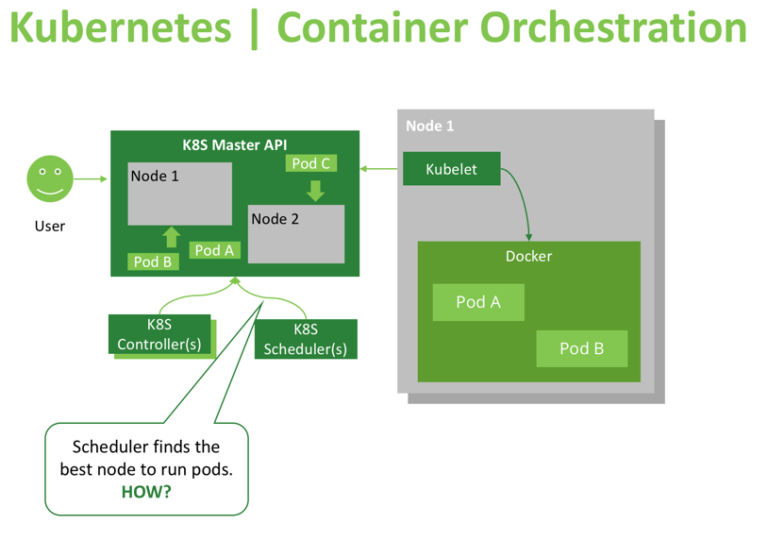
The Kubernetes Scheduler is a core component of Kubernetes: After a user or a controller creates a Pod, the Kubernetes Scheduler, monitoring the Object Store for unassigned Pods, will assign the Pod to a Node. Then, the Kubelet, monitoring the Object Store for assigned Pods, will execute the Pod.
what is the scheduler for?
The Kubernetes scheduler is in charge of scheduling pods onto nodes. Basically it works like this:
You create a pod
The scheduler notices that the new pod you created doesn’t have a node assigned to it
The scheduler assigns a node to the pod
It’s not responsible for actually running the pod – that’s the kubelet’s job. So it basically just needs to make sure every pod has a node assigned to it. Easy, right?
What is node affinity ?
In simple words this allows you to tell Kubernetes to schedule pods only to specific subsets of nodes.
The initial node affinity mechanism in early versions of Kubernetes was the nodeSelector field in the pod specification. The node had to include all the labels specified in that field to be eligible to become the target for the pod.
nodeSelector Example
First is to give the node a label
kubectl label nodes node1 mynode=worker-1
Next is to create a pod and specify the node via the label
Lets create a pod
$ vi pod.yml
apiVersion: v1 #version of the API to use
kind: Pod #What kind of object we're deploying
metadata: #information about our object we're deploying
name: nginx #Name of the pod
labels: #A tag on the pod created
env: test
spec: #specifications for our object
containers:
- name: nginx #the name of the container within the pod
image: nginx #which container image should be pulled
imagePullPolicy: IfNotPresent #image pull policy
nodeSelector: #Nodeselector condition
mynode: worker-1 # label on the node where pod is going to deploy
Then
kubectl apply -f pod.yml
This will create a pod and will deploy it on the node with label mynode=worker-1
Viewing Your Pods
kubectl get pods --output=wide
[node1 Scheduler101]$ kubectl describe po nginx
Name:               nginx
Namespace:          default
Priority:           0
PriorityClassName:  <none>
Node:               node2/192.168.0.17
Start Time:         Mon, 30 Dec 2019 16:40:53 +0000
Labels:             env=test
Annotations:        kubectl.kubernetes.io/last-applied-configuration:
                      {"apiVersion":"v1","kind":"Pod","metadata":{"annotations":{},"labels":{"env":"test"},"name":"nginx","namespace":"default"},"spec":{"contai...
Status:             Pending
IP:
Containers:
  nginx:
    Container ID:
    Image:          nginx
    Image ID:
    Port:           <none>
    Host Port:      <none>
    State:          Waiting
      Reason:       ContainerCreating
    Ready:          False
    Restart Count:  0
    Environment:    <none>
    Mounts:
      /var/run/secrets/kubernetes.io/serviceaccount from default-token-qpgxq (ro)
Conditions:
  Type              Status
  Initialized       True
  Ready             False
  ContainersReady   False
  PodScheduled      True
Volumes:
  default-token-qpgxq:
    Type:        Secret (a volume populated by a Secret)
    SecretName:  default-token-qpgxq
    Optional:    false
QoS Class:       BestEffort
Node-Selectors:  mynode=worker-1
Tolerations:     node.kubernetes.io/not-ready:NoExecute for 300s
                 node.kubernetes.io/unreachable:NoExecute for 300s
Events:
  Type    Reason     Age   From               Message
  ----    ------     ----  ----               -------
  Normal  Scheduled  7s    default-scheduler  Successfully assigned default/nginx to node2
  Normal  Pulling    3s    kubelet, node2     Pulling image "nginx"
Deleting the Pod
kubectl delete -f pod.yml
pod "nginx" deleted
Node affinity
Node affinity is conceptually similar to nodeSelector – it allows you to constrain which nodes your pod is eligible to be scheduled on, based on labels on the node.
There are currently two types of node affinity.
requiredDuringSchedulingIgnoredDuringExecution (Preferred during scheduling, ignored during execution; we are also known as “hard” requirements)
preferredDuringSchedulingIgnoredDuringExecution (Required during scheduling, ignored during execution; we are also known as “soft” requirements)
Hands On: First Label the Nodes(any two Nodes u have my ex node2, node3)
kubectl get pods --output=wide
NAME                 READY   STATUS    RESTARTS   AGE     IP          NODE          NOMINATED NODE   READINESS GATES
with-node-affinity   1/1     Running   0          9m46s   10.44.0.1   kube-slave1   <none>           <none>
[node1 Scheduler101]$ kubectl describe po
Name:               with-node-affinity
Namespace:          default
Priority:           0
PriorityClassName:  <none>
Node:               node3/192.168.0.16
Start Time:         Mon, 30 Dec 2019 19:28:33 +0000
Labels:             <none>
Annotations:        kubectl.kubernetes.io/last-applied-configuration:
                      {"apiVersion":"v1","kind":"Pod","metadata":{"annotations":{},"name":"with-node-affinity","namespace":"default"},"spec":{"affinity":{"nodeA...
Status:             Pending
IP:
Containers:
  nginx:
    Container ID:
    Image:          nginx
    Image ID:
    Port:           <none>
    Host Port:      <none>
    State:          Waiting
      Reason:       ContainerCreating
    Ready:          False
    Restart Count:  0
    Environment:    <none>
    Mounts:
      /var/run/secrets/kubernetes.io/serviceaccount from default-token-qpgxq (ro)
Conditions:
  Type              Status
  Initialized       True
  Ready             False
  ContainersReady   False
  PodScheduled      True
Volumes:
  default-token-qpgxq:
    Type:        Secret (a volume populated by a Secret)
    SecretName:  default-token-qpgxq
    Optional:    false
QoS Class:       BestEffort
Node-Selectors:  <none>
Tolerations:     node.kubernetes.io/not-ready:NoExecute for 300s
                 node.kubernetes.io/unreachable:NoExecute for 300s
Events:
  Type    Reason     Age   From               Message
  ----    ------     ----  ----               -------
  Normal  Scheduled  26s   default-scheduler  Successfully assigned default/with-node-affinity to node3
  Normal  Pulling    22s   kubelet, node3     Pulling image "nginx"
  Normal  Pulled     20s   kubelet, node3     Successfully pulled image "nginx"
  Normal  Created    2s    kubelet, node3     Created container nginx
  Normal  Started    0s    kubelet, node3     Started container nginx
Step Cleanup
Finally you can clean up the resources you created in your cluster:
A Kubernetes ReplicaSet creates and maintains a specific number of similar pods (replicas).
ReplicaSets are Kubernetes controllers that are used to maintain the number and running state of pods.
It uses labels to select pods that it should be managing.
A pod must labeled with a matching label to the ReplicaSet selector, and it must not be already owned by another controller so that the ReplicaSet can acquire it.
Pods can be isolated from a ReplicaSet by simply changing their labels so that they no longer match the ReplicaSet’s selector.
ReplicaSets can be deleted with or without deleting their dependent pods.
You can easily control the number of replicas (pods) the ReplicaSet should maintain through the command line or by directly editing the ReplicaSet configuration on the fly.
You can also configure the ReplicaSet to autoscale based on the amount of CPU load the node is experiencing.
You may have read about ReplicationControllers in older Kubernetes documentation, articles or books. ReplicaSets are the successors of ReplicationControllers. They are recommended to be used instead of ReplicationControllers as they provide more features.
How Does ReplicaSet Manage Pods?
In order for a ReplicaSet to work, it needs to know which pods it will manage so that it can restart the failing ones or kill the unneeded.
It also requires to understand how to create new pods from scratch in case it needs to spawn new ones.
A ReplicaSet uses labels to match the pods that it will manage. It also needs to check whether the target pod is already managed by another controller (like a Deployment or another ReplicaSet). So, for example if we need our ReplicaSet to manage all pods with the label role=webserver, the controller will search for any pod with that label. It will also examine the ownerReferences field of the pod’s metadata to determine whether or not this pod is already owned by another controller. If it isn’t, the ReplicaSet will start controlling it. Subsequently, the ownerReferences field of the target pods will be updated to reflect the new owner’s data.
To be able to create new pods if necessary, the ReplicaSet definition includes a template part containing the definition for new pods.
Hands on
Create a replicat set using the below manifest
step 1:
$ vi myfirstrs.yml
apiVersion: apps/v1
kind: ReplicaSet
metadata:
name: web
labels:
env: dev
role: web
spec:
replicas: 4
selector:
matchLabels:
role: web
template:
metadata:
labels:
role: web
spec:
containers:
- name: testnginx
image: nginx
step 2.
kubectl apply -f myfirtrs.yml
kubectl get rs
NAME   DESIRED   CURRENT   READY   AGE
web	4     	4     	4   	2m
Is Our ReplicaSet the Owner of Those Pods?
OK, so we do have four pods running, and our ReplicaSet reports that it is controlling four pods. In a busier environment, you may want to verify that a particular pod is actually managed by this ReplicaSet and not by another controller. By simply querying the pod, you can get this info:
kubectl get pods web-6n9cj -o yaml | grep -A 5 owner
The first part of the command will get all the pod information, which may be too verbose. Using grep with the -A flag (it takes a number and prints that number of lines after the match) will get us the required information as in the example:
You can remove (not delete) a pod that is managed by a ReplicaSet by simply changing its label. Let’s isolate one of the pods created in our previous example:
kubectl edit pods web-44cjb
Then, once the YAML file is opened, change the pod label to be role=isolated or anything different than role=web. In a few moments, run kubectl get pods. You will notice that we have five pods now. That’s because the ReplicaSet dutifully created a new pod to reach the desired number of four pods. The isolated one is still running, but it is no longer managed by the ReplicaSet.
You can easily change the number of pods a particular ReplicaSet manages in one of two ways:
Edit the controllers configuration by using kubectl edit rs ReplicaSet_name and change the replicas count up or down as you desire.
Use kubectl directly. For example, kubectl scale –replicas=2 rs/web. Here, I’m scaling down the ReplicaSet used in the article’s example to manage two pods instead of four. The ReplicaSet will get rid of two pods to maintain the desired count. If you followed the previous section, you may find that the number of running pods is three instead of two; as we isolated one of the pods so it is no longer managed by our ReplicaSet.
kubectl autoscale rs web --max=5
This will use the Horizontal Pod Autoscaler (HPA) with the ReplicaSet to increase the number of pods when the CPU load gets higher, but it should not exceed five pods. When the load decreases, it cannot have less than the number of pods specified before (two in our example).
Best Practices
The recommended practice is to always use the ReplicaSet’s template for creating and managing pods. However, because of the way ReplicaSets work, if you create a bare pod (not owned by any controller) with a label that matches the ReplicaSet selector, the controller will automatically adopt it. This has a number of undesirable consequences. Let’s have a quick lab to demonstrate them.
Deploy a pod by using a definition file like the following:
apiVersion: v1
kind: Pod
metadata:
  name: orphan
  labels:
	role: web
spec:
  containers:
  - name: orphan
	image: httpd
It looks a lot like the other pods, but it is using Apache (httpd) instead of Nginx for an image. Using kubectl, we can apply this definition like:
kubectl apply -f orphan.yaml
Give it a few moments for the image to get pulled and the container is spawned then run kubectl get pods. You should see an output that looks like the following:
NAME    	READY   STATUS    	RESTARTS   AGE
orphan  	0/1 	Terminating   0      	1m
web-6n9cj   1/1 	Running   	0      	25m
web-7kqbm   1/1 	Running   	0      	25m
web-9src7   1/1 	Running   	0      	25m
web-fvxzf   1/1 	Running   	0      	25m
The pod is being terminated by the ReplicaSet because, by adopting it, the controller has more pods than it was configured to handle. So, it is killing the excess one.
Deleting Replicaset
kubectl delete rs ReplicaSet_name
Alternatively, you can also use the file that was used to create the resource (and possibly, other resource definitions as well) to delete all the resources defined in the file as follows:
kubectl delete -f definition_file.yaml
The above commands will delete the ReplicaSet and all the pods that it manges. But sometimes you may want to just delete the ReplicaSet resource, keeping the pods unowned (orphaned). Maybe you want to manually delete the pods and you don’t want the ReplicaSet to restart them. This can be done using the following command:
kubectl delete rs ReplicaSet_name --cascade=false
If you run kubectl get rs now you should see that there are no ReplicaSets there. Yet if you run kubectl get pods, you should see all the pods that were managed by the destroyed ReplicaSet still running.
The only way to get those pods managed by a ReplicaSet again is to create this ReplicaSet with the same selector and pod template as the previous one. If you need a different pod template, you should consider using a Deployment instead, which will handle replacing pods in a controlled way