Monday, 24 November 2025

How to install Sonarqube using BashScripts

SonarQube 25.x Bash Installer Script (Ubuntu 22.04 / 24.04)

Save this script as install-sonarqube-25.sh and run it with sudo bash install-sonarqube-25.sh.

#!/bin/bash
set -e

echo "=============================="
echo " SonarQube 25.x Installer"
echo "=============================="

SONAR_VERSION="25.11.0.114957"
SONAR_ZIP="sonarqube-$SONAR_VERSION.zip"
SONAR_URL="https://binaries.sonarsource.com/Distribution/sonarqube/$SONAR_ZIP"
SONAR_DIR="/opt/sonarqube"

DB_NAME="sonarqube"
DB_USER="sonaruser"
DB_PASS="StrongPassword123!"   # <-- Change if you want


echo "[1/12] Updating system..."
apt update && apt upgrade -y

echo "[2/12] Installing required packages..."
apt install -y wget unzip curl git apt-transport-https

echo "[3/12] Installing Java 17..."
apt install -y openjdk-17-jdk
echo "Java installed:"
java -version


echo "[4/12] Installing PostgreSQL..."
apt install -y postgresql postgresql-contrib
systemctl enable --now postgresql


echo "[5/12] Creating SonarQube database and user..."
sudo -u postgres psql <<EOF
DROP DATABASE IF EXISTS $DB_NAME;
DROP ROLE IF EXISTS $DB_USER;
CREATE ROLE $DB_USER WITH LOGIN ENCRYPTED PASSWORD '$DB_PASS';
CREATE DATABASE $DB_NAME OWNER $DB_USER ENCODING 'UTF8' LC_COLLATE='C.UTF-8' LC_CTYPE='C.UTF-8';
GRANT ALL PRIVILEGES ON DATABASE $DB_NAME TO $DB_USER;
EOF


echo "[6/12] Setting Elasticsearch limits..."
echo "vm.max_map_count=524288" | tee -a /etc/sysctl.conf
echo "fs.file-max=65536" | tee -a /etc/sysctl.conf
sysctl -p

tee -a /etc/security/limits.conf <<EOF
sonar   -   nofile   65536
sonar   -   nproc    4096
EOF


echo "[7/12] Creating sonar user..."
groupadd -f sonar
id -u sonar >/dev/null 2>&1 || useradd -c "SonarQube User" -d /opt/sonarqube -g sonar -s /bin/bash sonar


echo "[8/12] Downloading SonarQube $SONAR_VERSION..."
cd /opt
rm -rf $SONAR_ZIP sonarqube-$SONAR_VERSION $SONAR_DIR

wget $SONAR_URL
unzip $SONAR_ZIP
mv sonarqube-$SONAR_VERSION sonarqube
chown -R sonar:sonar $SONAR_DIR


echo "[9/12] Configuring sonar.properties..."
sed -i "s|#sonar.jdbc.username=.*|sonar.jdbc.username=$DB_USER|" $SONAR_DIR/conf/sonar.properties
sed -i "s|#sonar.jdbc.password=.*|sonar.jdbc.password=$DB_PASS|" $SONAR_DIR/conf/sonar.properties
sed -i "s|#sonar.jdbc.url=jdbc:postgresql.*|sonar.jdbc.url=jdbc:postgresql://localhost:5432/$DB_NAME|" $SONAR_DIR/conf/sonar.properties
echo "sonar.web.host=0.0.0.0" >> $SONAR_DIR/conf/sonar.properties


echo "[10/12] Creating systemd service..."
tee /etc/systemd/system/sonarqube.service > /dev/null <<EOF
[Unit]
Description=SonarQube 25.x Service
After=network.target postgresql.service

[Service]
Type=forking
User=sonar
Group=sonar
ExecStart=/opt/sonarqube/bin/linux-x86-64/sonar.sh start
ExecStop=/opt/sonarqube/bin/linux-x86-64/sonar.sh stop
Restart=always
LimitNOFILE=65536
LimitNPROC=4096
Environment="JAVA_HOME=/usr/lib/jvm/java-17-openjdk-amd64"

[Install]
WantedBy=multi-user.target
EOF


echo "[11/12] Starting SonarQube..."
systemctl daemon-reload
systemctl enable sonarqube
systemctl start sonarqube
sleep 5


echo "[12/12] Checking logs..."
tail -n 30 /opt/sonarqube/var/logs/web.log || echo "SonarQube starting, logs not ready yet."


echo "====================================================="
echo " SonarQube 25.x Installation Complete!"
echo "====================================================="
echo " URL:  http://YOUR_SERVER_IP:9000"
echo " Login: admin / admin"
echo " Database: $DB_NAME"
echo " DB User:  $DB_USER"
echo "====================================================="

How to Install SonarQube 25 on ubuntu 22/24

Install SonarQube 25.x (Community Edition) on Ubuntu 22.04 / 24.04

This is a complete fresh installation guide for SonarQube 25.x, using Java 17 and PostgreSQL. All commands include copy buttons for easy use.


Step 1 — Update System

sudo apt update && sudo apt upgrade -y
sudo apt install -y wget unzip curl git apt-transport-https

Step 2 — Install Java 17

sudo apt install -y openjdk-17-jdk
java -version

Step 3 — Install PostgreSQL

sudo apt install -y postgresql postgresql-contrib
sudo systemctl enable --now postgresql

Step 4 — Create SonarQube Database & User

sudo -u postgres psql <<EOF
CREATE ROLE sonaruser WITH LOGIN ENCRYPTED PASSWORD 'StrongPassword123!';
CREATE DATABASE sonarqube OWNER sonaruser ENCODING 'UTF8' LC_COLLATE='C.UTF-8' LC_CTYPE='C.UTF-8';
GRANT ALL PRIVILEGES ON DATABASE sonarqube TO sonaruser;
EOF

Verify database is empty:

sudo -u postgres psql -d sonarqube -c "\dt"

Step 5 — Configure Kernel Limits (Elasticsearch)

echo "vm.max_map_count=524288" | sudo tee -a /etc/sysctl.conf
echo "fs.file-max=65536" | sudo tee -a /etc/sysctl.conf
sudo sysctl -p

Set user limits:

sudo tee -a /etc/security/limits.conf <<EOF
sonar   -   nofile   65536
sonar   -   nproc    4096
EOF

Step 6 — Create Dedicated SonarQube User

sudo groupadd sonar
sudo useradd -c "SonarQube User" -d /opt/sonarqube -g sonar -s /bin/bash sonar

Step 7 — Download SonarQube 25.x

Using your specific build: sonarqube-25.11.0.114957.zip

cd /opt
sudo wget https://binaries.sonarsource.com/Distribution/sonarqube/sonarqube-25.11.0.114957.zip
sudo unzip sonarqube-25.11.0.114957.zip
sudo mv sonarqube-25.11.0.114957 sonarqube
sudo chown -R sonar:sonar /opt/sonarqube

Step 8 — Configure SonarQube (sonar.properties)

sudo nano /opt/sonarqube/conf/sonar.properties

Set the following inside the file:

sonar.jdbc.username=sonaruser
sonar.jdbc.password=StrongPassword123!
sonar.jdbc.url=jdbc:postgresql://localhost:5432/sonarqube
sonar.web.host=0.0.0.0

Step 9 — Create Systemd Service

sudo tee /etc/systemd/system/sonarqube.service > /dev/null <<EOF
[Unit]
Description=SonarQube 25.x Service
After=network.target postgresql.service

[Service]
Type=forking
User=sonar
Group=sonar
ExecStart=/opt/sonarqube/bin/linux-x86-64/sonar.sh start
ExecStop=/opt/sonarqube/bin/linux-x86-64/sonar.sh stop
Restart=always
LimitNOFILE=65536
LimitNPROC=4096
Environment="JAVA_HOME=/usr/lib/jvm/java-17-openjdk-amd64"

[Install]
WantedBy=multi-user.target
EOF
sudo systemctl daemon-reload

Step 10 — Start SonarQube

sudo systemctl start sonarqube
sudo systemctl enable sonarqube

Check service status:

systemctl status sonarqube

Check logs (new location for 25.x):

tail -f /opt/sonarqube/var/logs/web.log

Step 11 — Open Firewall

sudo ufw allow 9000/tcp
sudo ufw status

Step 12 — Access the UI

http://YOUR_SERVER_PUBLIC_IP:9000

Default Login:

  • Username: admin
  • Password: admin

Installation Complete

SonarQube 25.x is now fully installed and running on your server.

Sunday, 23 November 2025

How to install Sonarqube on Ubuntu 22

Install SonarQube 9.9 LTS on Ubuntu 22.04

This is a clean installation guide for SonarQube 9.9.0.65466 using Java 17 and PostgreSQL.


Step 0 — Update Ubuntu

sudo apt update && sudo apt upgrade -y
sudo apt install -y wget unzip vim

Step 1 — Install Java 17

sudo apt install -y openjdk-17-jdk
java -version

Step 2 — Install PostgreSQL

sudo apt install -y postgresql postgresql-contrib
sudo systemctl enable --now postgresql

Step 3 — Create Database & User

sudo -u postgres psql <<EOF
CREATE ROLE sonaruser WITH LOGIN ENCRYPTED PASSWORD 'StrongPassword123!';
CREATE DATABASE sonarqube OWNER sonaruser ENCODING 'UTF8' LC_COLLATE='C.UTF-8' LC_CTYPE='C.UTF-8';
GRANT ALL PRIVILEGES ON DATABASE sonarqube TO sonaruser;
EOF

Verify database is empty:

sudo -u postgres psql -d sonarqube -c "\dt"

Step 4 — Kernel Settings for Elasticsearch

echo "vm.max_map_count=524288" | sudo tee -a /etc/sysctl.conf
sudo sysctl -p

Step 5 — Download SonarQube 9.9.0.65466

cd /tmp
sudo wget https://binaries.sonarsource.com/Distribution/sonarqube/sonarqube-9.9.0.65466.zip
sudo unzip sonarqube-9.9.0.65466.zip -d /opt
sudo mv /opt/sonarqube-9.9.0.65466 /opt/sonarqube

Step 6 — Create SonarQube User

sudo groupadd sonar
sudo useradd -c "SonarQube User" -d /opt/sonarqube -g sonar -s /bin/bash sonar
sudo chown -R sonar:sonar /opt/sonarqube

Step 7 — Configure SonarQube

Edit config:

sudo nano /opt/sonarqube/conf/sonar.properties

Set these values:

sonar.jdbc.username=sonaruser
sonar.jdbc.password=StrongPassword123!
sonar.jdbc.url=jdbc:postgresql://localhost:5432/sonarqube
sonar.web.host=0.0.0.0

Step 8 — Create Systemd Service

sudo tee /etc/systemd/system/sonarqube.service > /dev/null << 'EOF'
[Unit]
Description=SonarQube service
After=network.target postgresql.service

[Service]
Type=forking
User=sonar
Group=sonar
ExecStart=/opt/sonarqube/bin/linux-x86-64/sonar.sh start
ExecStop=/opt/sonarqube/bin/linux-x86-64/sonar.sh stop
Restart=always
LimitNOFILE=65536
LimitNPROC=4096

[Install]
WantedBy=multi-user.target
EOF
sudo systemctl daemon-reload

Step 9 — Start SonarQube

sudo systemctl start sonarqube
sudo systemctl enable sonarqube

Check status:

systemctl status sonarqube

Check logs:

tail -f /opt/sonarqube/logs/web.log

Step 10 — Open Firewall

sudo ufw allow 9000/tcp
sudo ufw status

Step 11 — Access SonarQube

http://YOUR_SERVER_PUBLIC_IP:9000

Default Login:

  • Username: admin
  • Password: admin

Installation Complete

Your SonarQube 9.9 LTS server is fully operational.

Friday, 21 November 2025

How to install Google ADK(Agent Development Kit) on Windows

 This guide shows you how to get up and running with Agent Development Kit (ADK) for Python. Before you start, make sure you have the following installed:

  • Python 3.9 or later
  • pip for installing packages

Installation

In Your Terminal


Install ADK by running the following command:

pip install google-adk

STEP 1 — Find where pip put the ADK package

Run:

pip show adk

If that fails

Run:

pip show google-adk

You should see something like:

C:\Users\<name>\AppData\Roaming\Python\Python312

Add ADK Scripts folder to Windows PATH

  1. Press Win + R → type:

    sysdm.cpl
  2. Go to Advanced → Environment Variables

  3. Under User variables or System variables, find:

    Path

  4. Click Edit → New


  1. Add your path:

    C:\Users\Admin\AppData\Roaming\Python\Python314\Scripts
  2. Click OK on every window


  3. Close and reopen PowerShell or Git Bash

Create an agent project

Run the adk create command to start a new agent project.

adk create my_agent

Explore the agent project

The created agent project has the following structure, with the agent.py file containing the main control code for the agent.

my_agent/
    agent.py      # main agent code
    .env          # API keys or project IDs
    __init__.py

Update your agent project

The agent.py file contains a root_agent definition which is the only required element of an ADK agent. You can also define tools for the agent to use. Update the generated agent.py code to include a get_current_time tool for use by the agent, as shown in the following code:

from google.adk.agents.llm_agent import Agent

# Mock tool implementation
def get_current_time(city: str) -> dict:
    """Returns the current time in a specified city."""
    return {"status": "success", "city": city, "time": "10:30 AM"}

root_agent = Agent(
    model='gemini-3-pro-preview',
    name='root_agent',
    description="Tells the current time in a specified city.",
    instruction="You are a helpful assistant that tells the current time in cities. Use the 'get_current_time' tool for this purpose.",
    tools=[get_current_time],
)

Set your API key

This project uses the Gemini API, which requires an API key. If you don't already have Gemini API key, create a key in Google AI Studio on the API Keys page.

In a terminal window, write your API key into an .env file as an environment variable:

Update: my_agent/.env
echo 'GOOGLE_API_KEY="YOUR_API_KEY"' > .env
Using other AI models with ADK

ADK supports the use of many generative AI models. For more information on configuring other models in ADK agents, see Models & Authentication.

Run your agent

You can run your ADK agent with an interactive command-line interface using the adk run command or the ADK web user interface provided by the ADK using the adk web command. Both these options allow you to test and interact with your agent.

Run with command-line interface

Run your agent using the adk run command-line tool.

adk run my_agent

adk-run.png

Run with web interface

The ADK framework provides web interface you can use to test and interact with your agent. You can start the web interface using the following command:

adk web --port 8000

Note

Run this command from the parent directory that contains your my_agent/ folder. For example, if your agent is inside agents/my_agent/, run adk web from the agents/ directory.

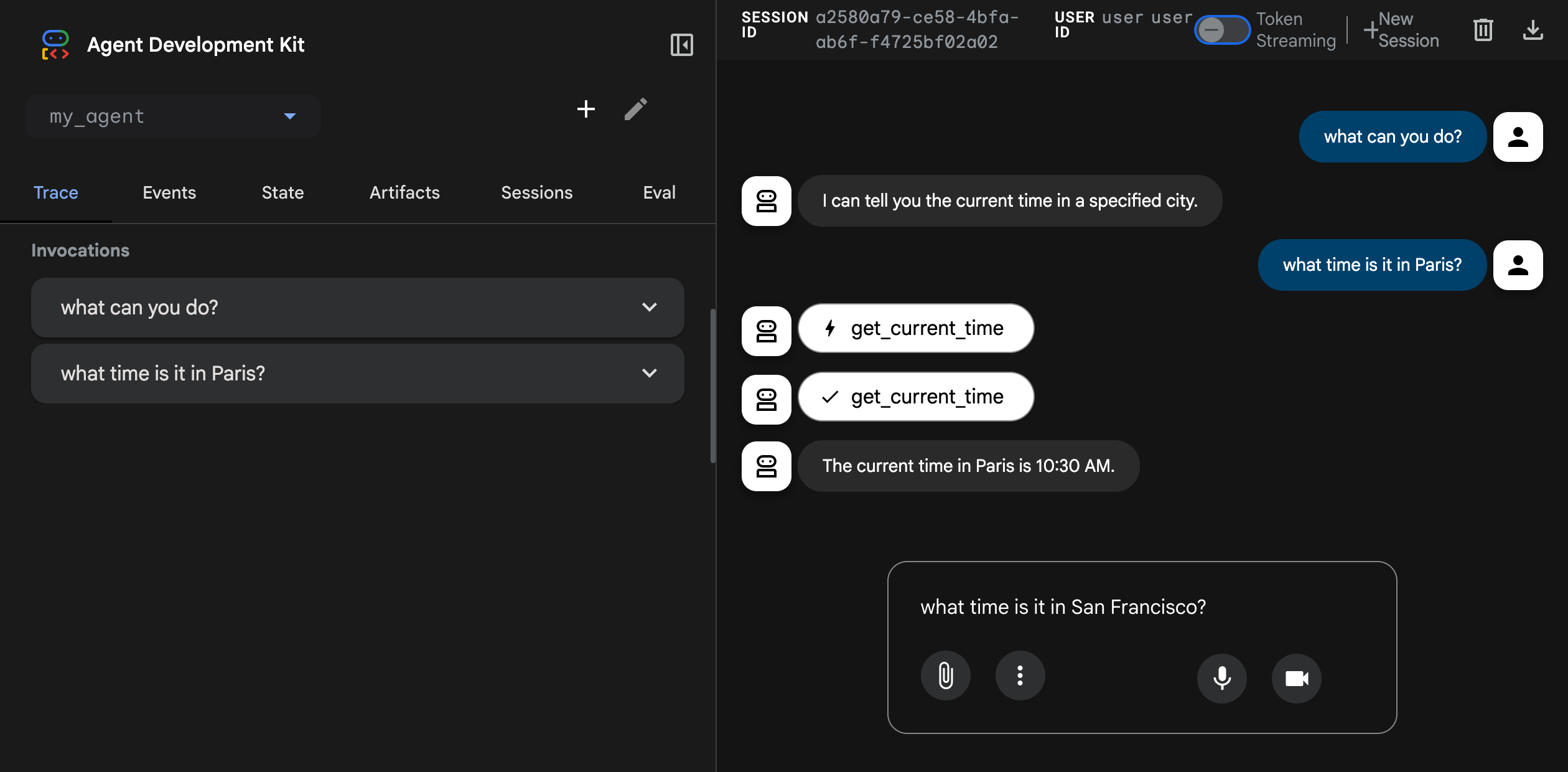
This command starts a web server with a chat interface for your agent. You can access the web interface at (http://localhost:8000). Select the agent at the upper left corner and type a request.

adk-web-dev-ui-chat.png

What is the Model Context Protocol (MCP)

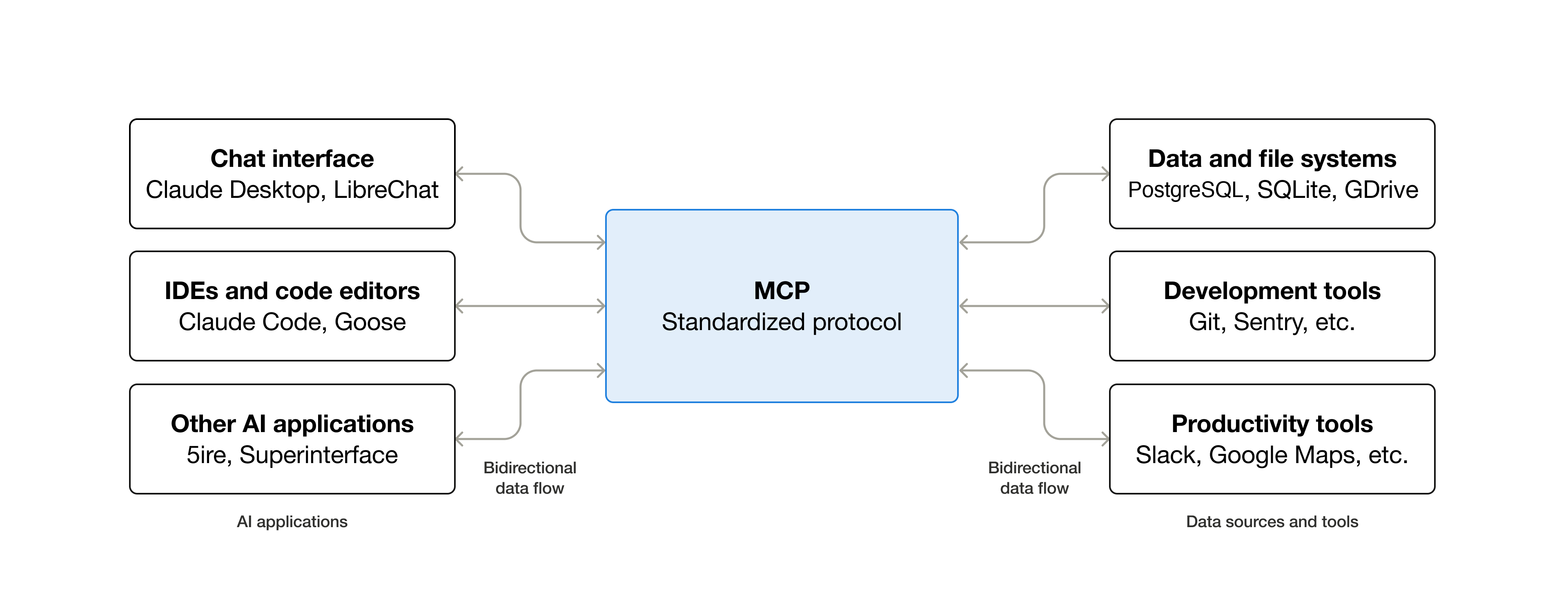
MCP (Model Context Protocol) is an open-source standard for connecting AI applications to external systems.Using MCP, AI applications like Claude or ChatGPT can connect to data sources (e.g. local files, databases), tools (e.g. search engines, calculators) and workflows (e.g. specialized prompts)—enabling them to access key information and perform tasks.Think of MCP like a USB-C port for AI applications. Just as USB-C provides a standardized way to connect electronic devices, MCP provides a standardized way to connect AI applications to external systems.

What can MCP enable?

  • Agents can access your Google Calendar and Notion, acting as a more personalized AI assistant.
  • Claude Code can generate an entire web app using a Figma design.
  • Enterprise chatbots can connect to multiple databases across an organization, empowering users to analyze data using chat.
  • AI models can create 3D designs on Blender and print them out using a 3D printer.

Why does MCP matter?

Depending on where you sit in the ecosystem, MCP can have a range of benefits.
  • Developers: MCP reduces development time and complexity when building, or integrating with, an AI application or agent.
  • AI applications or agents: MCP provides access to an ecosystem of data sources, tools and apps which will enhance capabilities and improve the end-user experience.
  • End-users: MCP results in more capable AI applications or agents which can access your data and take actions on your behalf when necessary.

Bash Script to Install Artifactory in Ubuntu 22

JFrog Artifactory OSS 7.21.5 — Install (Bash Script) This script installs Artifactory OSS (no Docker, no Pro, works on Ubuntu 22 EC2). ...